
Can we talk about digital stickers for a minute? I’m kind of obsessed with how they’ve transformed my digital planning game.
You know those cute little images you can drag and drop into your digital planner or journal? That’s what I’m talking about!
I love how there’s literally a sticker for everything these days.
Want something cute and kawaii? Done.
More into that clean, minimalist look? Got you covered.
Whatever your style is, there’s probably a digital sticker pack out there that’s perfect for you.
Some Free Digital Stickers I Made for YOU

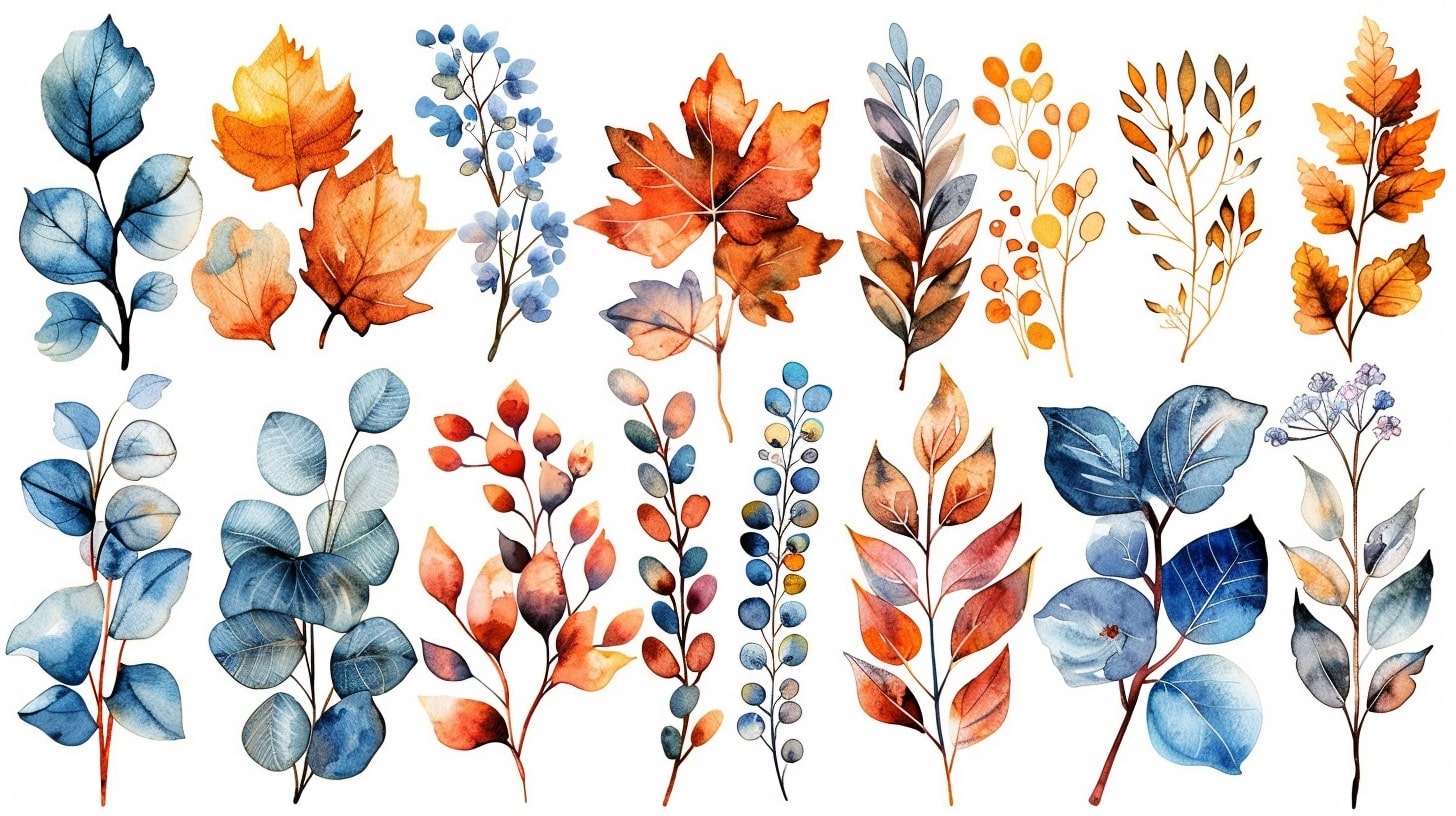
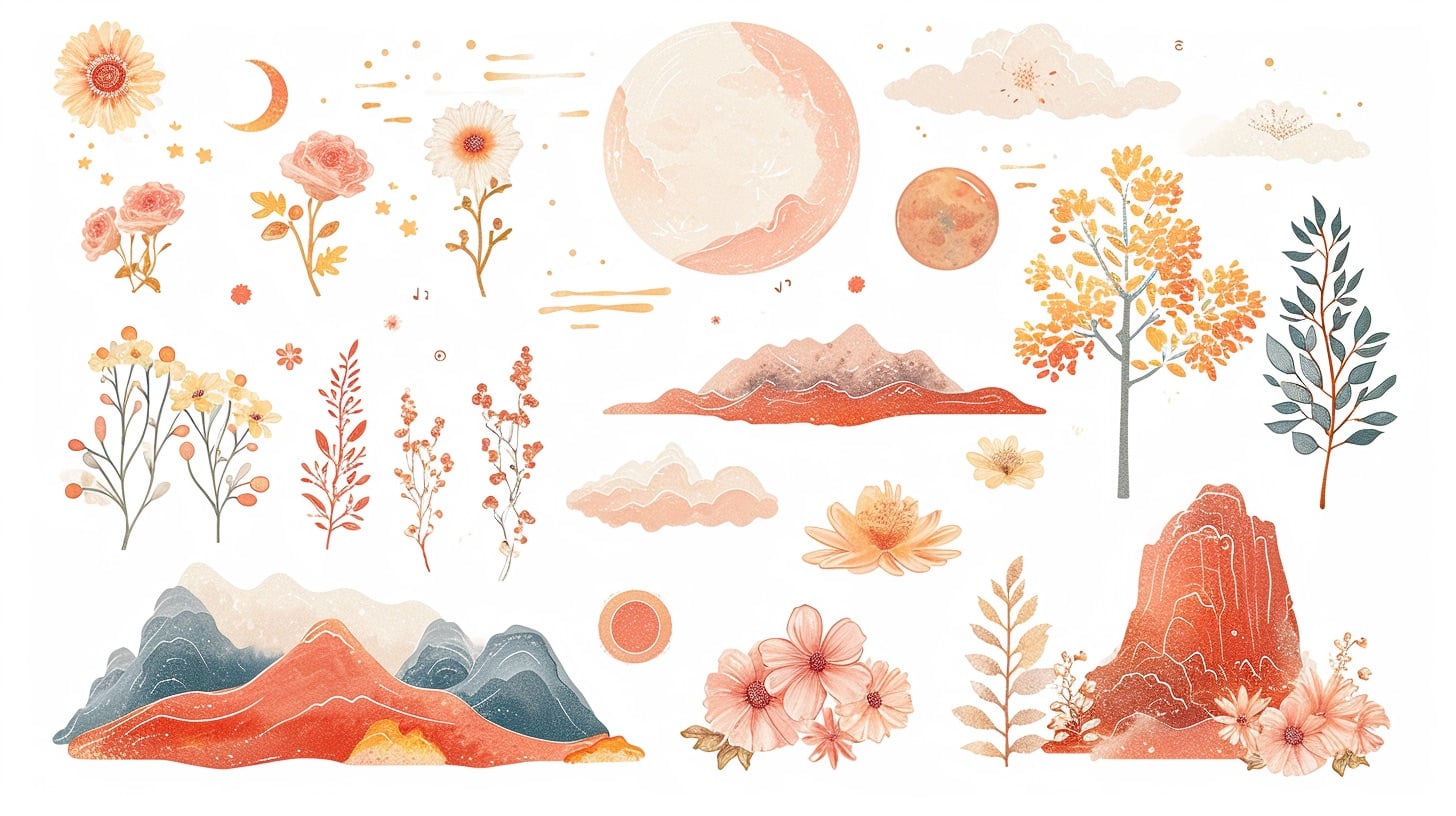
Throughout this post there are images with digital stickers, feel free to right click and save them for yourself. You can use Canva to manipulate the stickers. (If you aren’t sure how, watch the YouTube video below!)
Check out our article on cute digital stickers for more inspiration.
More Free Digital Stickers to Grab
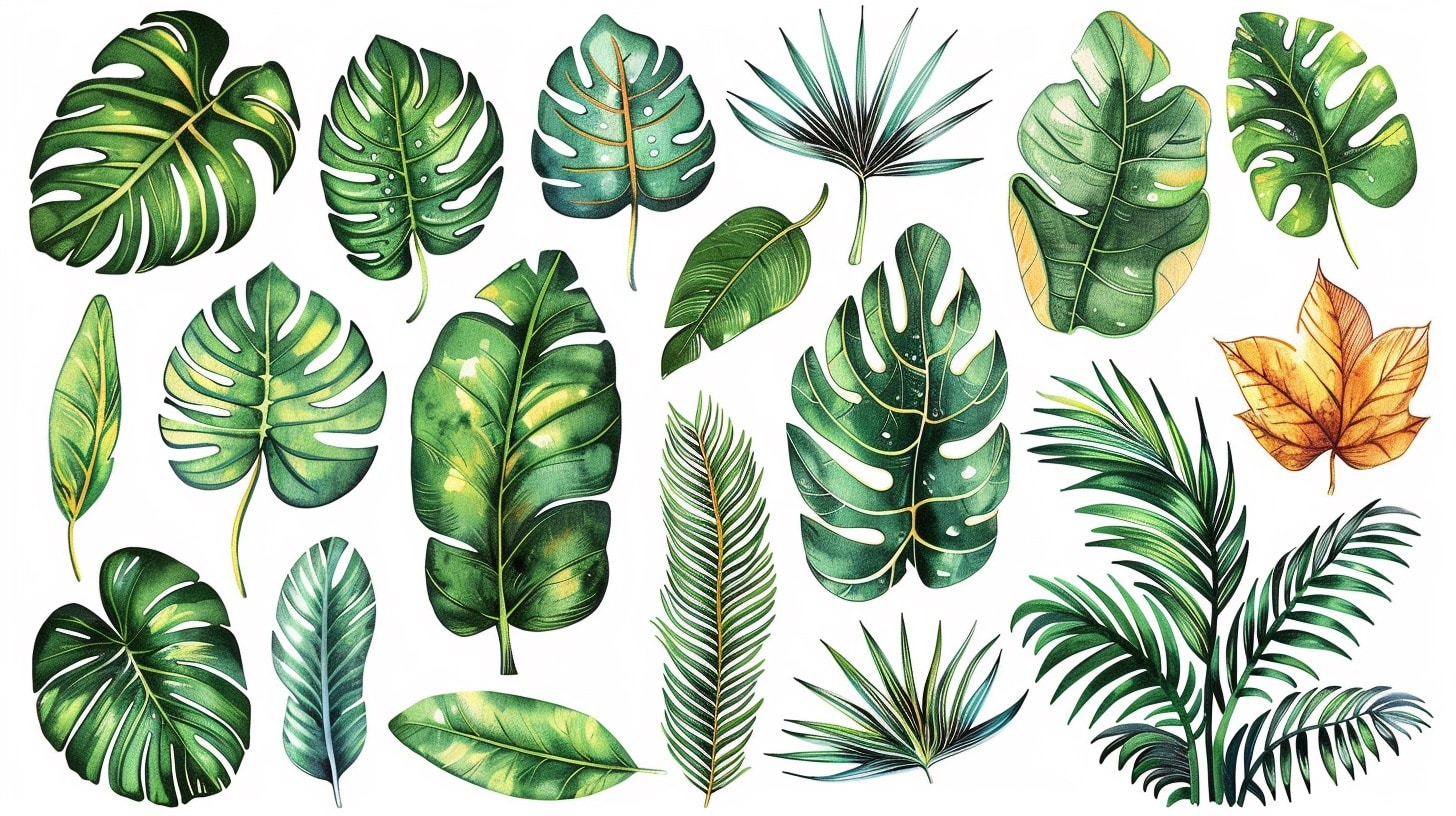
Now, let’s talk about the best part – getting even more of these cute stickers for FREE! Because let’s be honest, building your perfect digital planner shouldn’t cost a fortune.
First up, let’s look at some websites that are total goldmines for free digital stickers.
Websites Offering Free Digital Stickers
| Website | Description |
|---|---|
| Happy Downloads | Happy Downloads has a whole VAULT of free stickers for you. |
| FreePik | FreePik has lots sets of free stickers as well as some premium options. |
| Yaay Planners | A website with a vast selection of free digital stickers contributed by users. |
Pro tip: Just make sure to check out each site’s rules about how you can use their stickers.
Most artists are super generous with their freebies, but they usually have some basic guidelines they’d like you to follow.
It’s how we keep the freebie community awesome!
For more ideas on digital planner stickers, check out our article on digital planner stickers.
Finding Your Perfect Digital Stickers

Look, I know how overwhelming it can get when you’re hunting for just the right stickers. Let me help you narrow it down a bit!
Popular Themes You’ll Love
I’ve noticed these themes tend to be total crowd-pleasers (and they’re my personal favorites too):
- Nature and Floral: Stickers featuring flowers, plants, landscapes, and natural elements.
- Planner Essentials: Stickers specifically designed for planning, including icons, calendars, and to-do lists.
- Inspirational Quotes: Stickers that feature motivational quotes and affirmations.
- Holidays and Seasons: Stickers to celebrate specific holidays or capture the essence of different seasons.
- Food and Drinks: Stickers depicting various food items, beverages, and culinary themes.
When you find the themes that resonate with you, you can curate a collection of digital stickers that perfect for YOU.
Want even more cute digital stickers? Check out our article on cute digital stickers.
Customization and Personalization Options
Here’s what I love about digital stickers – you’re not stuck with them exactly as they come!
Most sticker packs let you play around with them a bit.
Want that cute coffee cup sticker in pink instead of brown? Done! Need it smaller or flipped around? Easy peasy.
The real magic happens when you start mixing stickers with your own touches. Add your favorite quote, doodle a little heart next to them, or use them as part of your own artwork.
Just check what the creator allows – most are pretty flexible with personal use, but it’s good to know the rules!
For more on creating your own digital stickers, check out our article on digital sticker makers.
Or if you want more about digital planner stickers and packs, check out our article on digital sticker packs.
Making Digital Stickers Work For You
The Tech Stuff You Need to Know
Let’s be real – there’s nothing more frustrating than downloading a bunch of cute stickers only to find out they don’t work with your favorite planning app! Before you get too excited and download everything (I’ve totally been there), here’s what you need to check:
- What file type your app likes best (usually PNG or JPG)
- If your app has any size limits
- Whether your app needs stickers in a specific format
I learned this the hard way when I first started – trust me, checking these details first will save you so much time!
To find the perfect digital planner stickers or compatible apps for your needs, consider exploring articles like digital planner stickers and cute digital stickers that provide recommendations and insights into popular options.
Keeping Your Stickers Organized

Ok, let me share my favorite organization hack that’s saved me hours of searching: Set up folders based on how you actually use your stickers, not just by theme. Here’s what I mean:
✨ Make folders for:
- Daily must-haves (checkboxes, arrows, tabs)
- Mood boosters (inspirational quotes, cute characters)
- Seasonal stuff
- Special projects
Pro tip: Create a quick reference image for each folder. Trust me, a visual preview beats trying to remember file names any day!
Fun Ways to Use Your Stickers

Let’s talk about some creative ways to put these stickers to work. I’ve discovered some pretty cool uses beyond just decorating…
- Digital Planner: Use digital stickers to enhance your planner pages, add decorative elements, or create themed spreads for special occasions or events.
- Social Media Graphics: Incorporate digital stickers into your social media graphics to make them more visually appealing and engaging. They can be used to highlight key points, add fun elements, or create eye-catching frames.
- Digital Art and Scrapbooking: Combine digital stickers with your artwork or photographs to create unique digital collages or scrapbook pages. They can be used to embellish photos, create borders, or add playful accents.
- Digital Presentations: Spice up your digital presentations by incorporating digital stickers to make key points stand out or to add visual interest to slides.
Remember, the only limit is your creativity! Experiment with different combinations, layering techniques, and blending options to create personalized designs that reflect your style.
By following these tips, you can effectively incorporate free digital stickers into your digital planning or creative projects.
Remember to explore articles like digital sticker maker and digital sticker packs to discover more resources and inspiration for your sticker collection.
Want to Make Your Own Digital Stickers?
I’ve got you! Making your own stickers is actually super fun and not as hard as you might think. Let me show you what you’ll need to get started…
Tools You’ll Need to Choose From
The easiest way I’ve found to make digital stickers is with Midjourney (AI Image Maker) and Canva. I have a full tutorial for that process on YouTube:
But there are lots of options depending on what you’re comfortable with.
| Tool/Software | Description |
|---|---|
| Vector Graphics Editors | Programs like Adobe Illustrator, CorelDRAW, or Inkscape allow you to create and edit vector-based designs. These editors provide a wide range of tools and features to bring your sticker ideas to life. |
| Digital Drawing Tablets | If you prefer a more hands-on approach to design, a digital drawing tablet can be a valuable tool. Tablets like Wacom Intuos or Huion Kamvas allow you to draw directly on the screen, making it easier to create detailed and precise designs. |
| Sticker Maker Apps | If you prefer designing on your mobile device, there are various sticker maker apps available. Apps like Procreate Pocket, Canva, or Sticker Maker Studio offer intuitive interfaces and a wide range of design features to create custom stickers on the go. |
| Midjourney | My favorite place to create my own custom digital stickers. Use AI to create those stickers that you’re imagining in your mind! |
These tools and software options provide different levels of complexity and functionality, so choose the one that best suits your comfort and skill level.
Tips for Creating Your Own Stickers
Got some design ideas brewing? Here’s what I’ve learned from making my own stickers:
- Plan First: Quick sketch or note about what you want to make – saves so much time later!
- Keep Things Sharp: Always work in high resolution. Nothing worse than pixelated stickers!
- Think Small: Remember, these need to look good when tiny. Keep designs clean and simple.
- Play with Colors: Test different color combos – what looks good on your screen might look different in your planner.
- Make Them Useful: Think about how you’ll actually use these. Can you resize them? Will they clash with your planner background?
Let Your Creativity Run Wild!

Remember – there’s no “wrong way” to make stickers.
Some of my favorite designs happened when I was just playing around and trying new things.
So grab your favorite drink, put on some music, and have fun creating!
If you’re looking for inspiration or want to explore pre-made digital sticker options, check out our article on digital sticker packs.