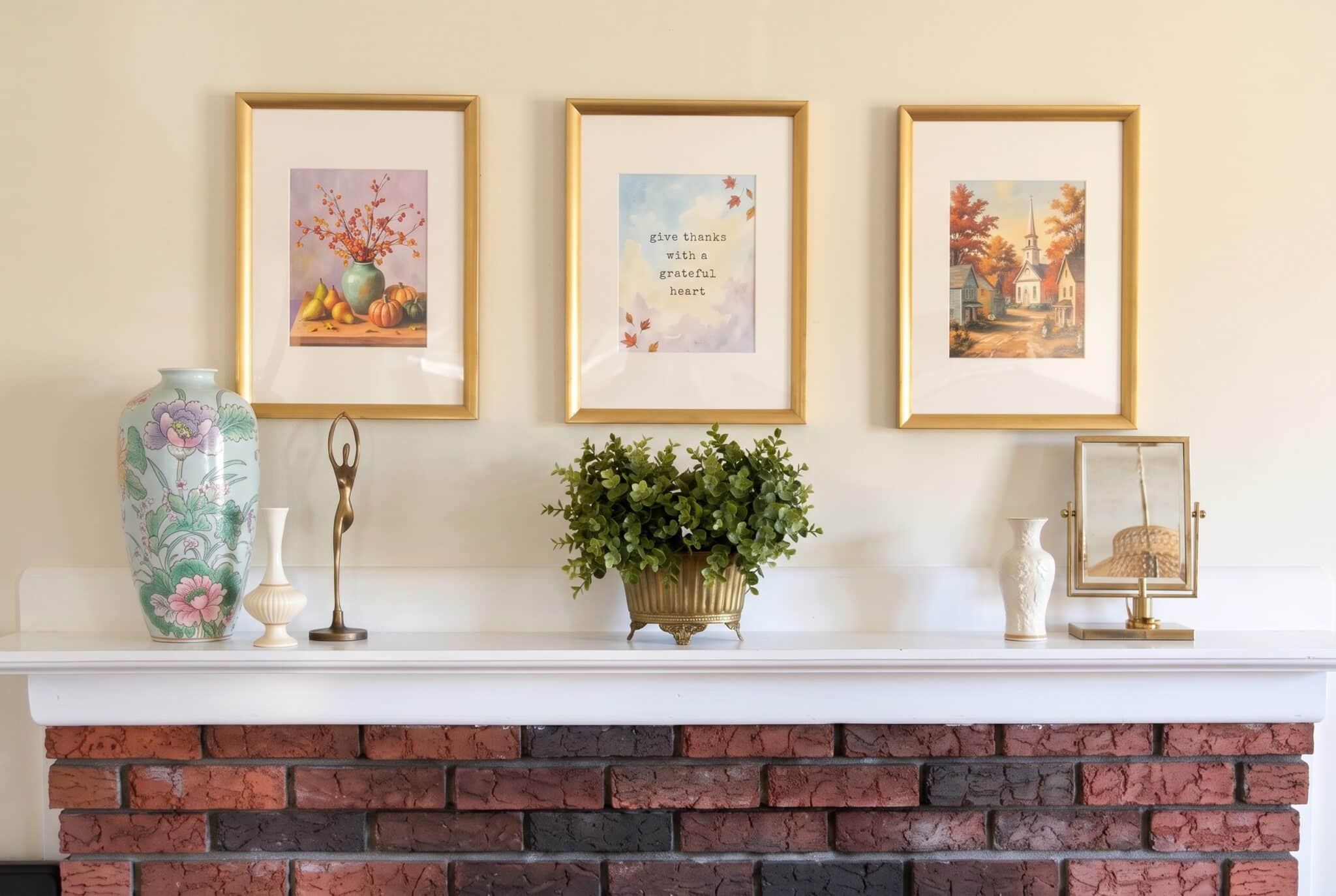
When I finished my 12 Seasons Collection prints in Gemini, they looked beautiful on my screen. Then I checked the file size and realized they were nowhere near big enough to print at 8×10.
That’s the catch with AI art. Gemini gives you an image that’s perfect for a phone or a blog post, but print it in a frame and it can come out soft or fuzzy.
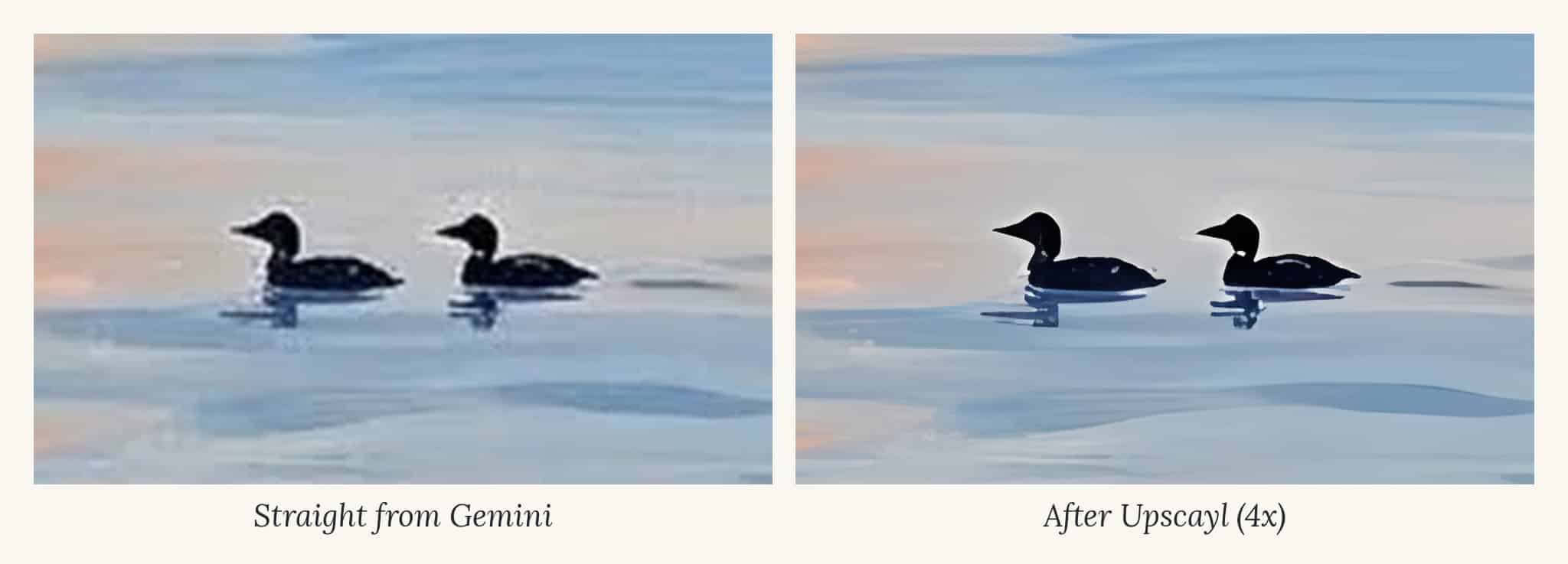
The fix is upscaling, and you don’t need to pay for it. Here’s exactly how I took my Gemini images from about 1,856 pixels wide to over 7,000, for free, and then sized them to print sharp at 8×10.
If you haven’t made your art yet, start with my guide to making printable wall art with Gemini.
FREE FOR READERS
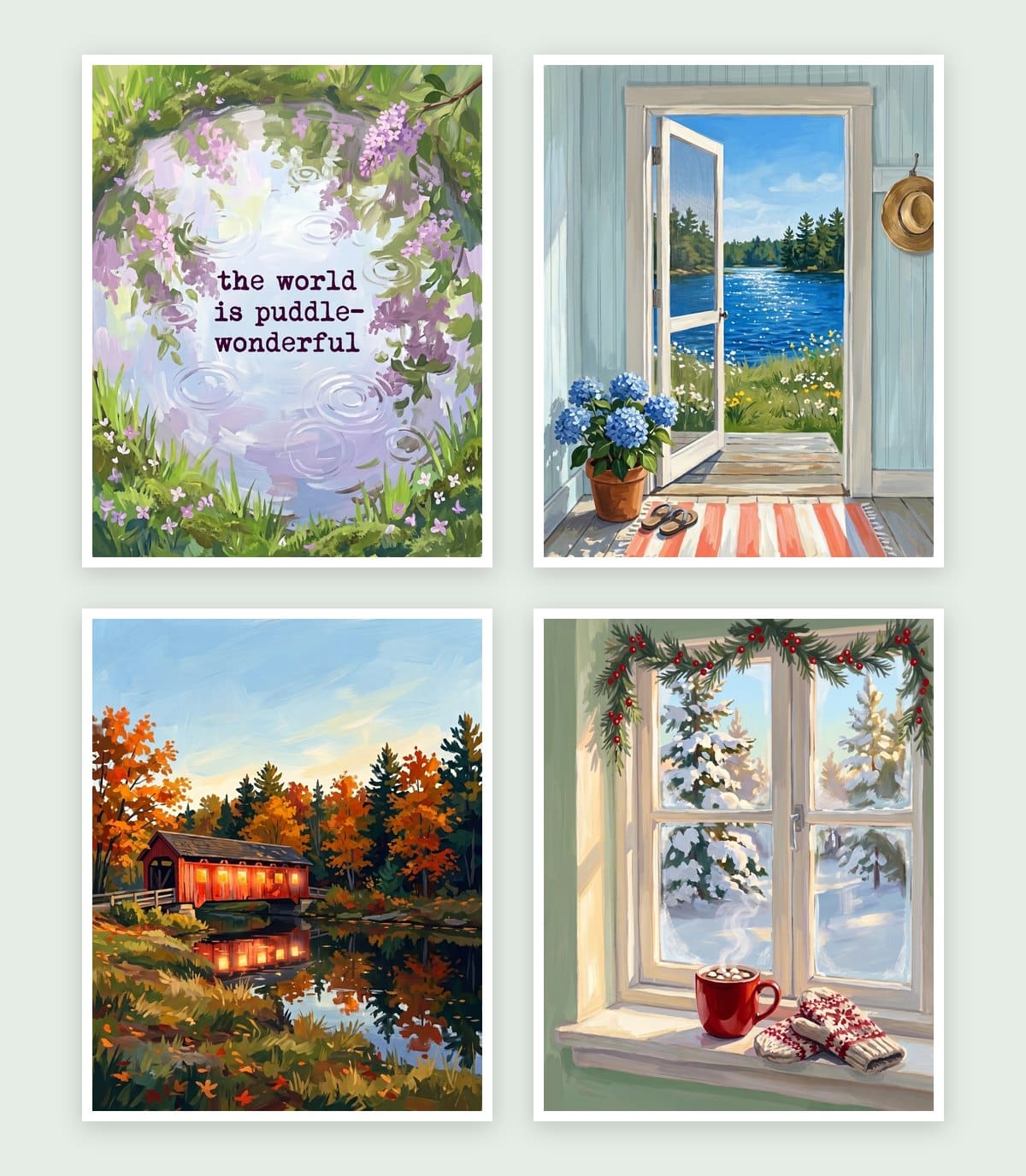
Seasonal Decorating, Made Simple
12 painted prints, three for every season. Just print, frame and swap.
Why AI images print blurry
Printing comes down to pixels per inch. For a crisp print, you want about 300 pixels for every inch of paper.
My Gemini images came out at 1,856 x 2,304 pixels. At 300 pixels per inch, that only covers about 6 x 7.5 inches. Stretch it to 8×10 and the printer has to fill in the gaps, which is where the blur comes from.
An 8×10 print at 300 dpi needs 2,400 x 3,000 pixels. So my images needed to grow before they could go in a frame.
Quick check: divide your image’s width in pixels by 300. That’s the widest print it can make without upscaling.
Print size cheat sheet
Here’s how many pixels you need for common frame sizes at 300 dpi. If you made your art at 4:5 like I did, 8×10 and 16×20 fit perfectly. The others need a little trimmed off the edges.
| Print size | Pixels needed (300 dpi) | Fits a 4:5 image? |
|---|---|---|
| 5×7 | 1,500 x 2,100 | Trims a little off the sides |
| 8×10 | 2,400 x 3,000 | Yes, perfectly |
| 11×14 | 3,300 x 4,200 | Trims a little off the sides |
| 16×20 | 4,800 x 6,000 | Yes, perfectly |
Tip: upscaling 4x gives you enough pixels for every size on this list, so you only have to do it once per image.
How to upscale with Upscayl (free)
Upscayl is a free, open-source app that uses AI to add detail as it enlarges your image. It runs on Mac, Windows and Linux, and everything happens on your own computer.
- Download the free version. When I searched for Upscayl, I kept landing on paid versions. The free one is on GitHub releases page. Download the file for your computer and install it like any other app.
- Open your image. Click Select Image and choose your Gemini file.
- Pick a model. Upscayl has a few AI models for different kinds of images. I use Digital Art. It keeps the brushstrokes and texture of a painting, while the Real Photo model smooths them out.
- Set the scale to 4x. That took my images from 1,856 x 2,304 to 7,424 x 9,216 pixels.
- Choose where to save it, then click Upscayl. It takes a minute or two per image, depending on your computer.

Doing a whole set? Upscayl has a batch option, so you can point it at a folder and upscale every print at once.
Resize to the exact print size
After upscaling, the files are huge. Mine were over 7,000 pixels wide, which is more than an 8×10 needs and makes the files slow to download. So I sized each one down to exactly 2,400 x 3,000 pixels for a 300 dpi 8×10.
Gemini images aren’t quite 4:5, so you’ll also trim a sliver off one edge. It’s so small you won’t notice it.
On a Mac, with Preview:
- Open the upscaled image in Preview.
- Go to Tools, then Adjust Size.
- Set the units to pixels and the resolution to 300.
- Type 2,400 for the width and keep “Scale proportionally” checked.
- If the height comes out a little over 3,000, use the selection tool to crop it to exactly 3,000.
- Save it as a new file so you keep the full-size original.
In Canva: create a custom design at 8 x 10 inches, drop your upscaled image in, stretch it to fill the page, and download it as a PNG or PDF Print.

Check before you print
Upscaling makes your image bigger, but it can’t fix problems that were already there. Before you print, zoom in to 100% and look for these:
- Faces, hands and small details. Upscalers can make tiny details look smooth or plastic. Painterly styles like gouache hide this well.
- Hidden text or squiggles. Gemini sometimes sneaks fake lettering into signs or corners. It’s much easier to spot once the image is big.
- Edges. Make sure there’s no thin white border or frame left over from Gemini.
- Colors. Prints usually come out a little darker than your screen. If a print looks muddy, brighten the file slightly before printing.
Tip: print one test page on regular paper first. It costs a few cents and saves your good cardstock.
Skip the work: get my prints
If you’d rather skip the upscaling, my free Seasons Collection is already done for you: 12 gouache prints, three for every season, sized at 8×10 and ready to print. Sign up below and I’ll send them to your inbox, along with my free Everyday Printables Playbook so you can make your own.