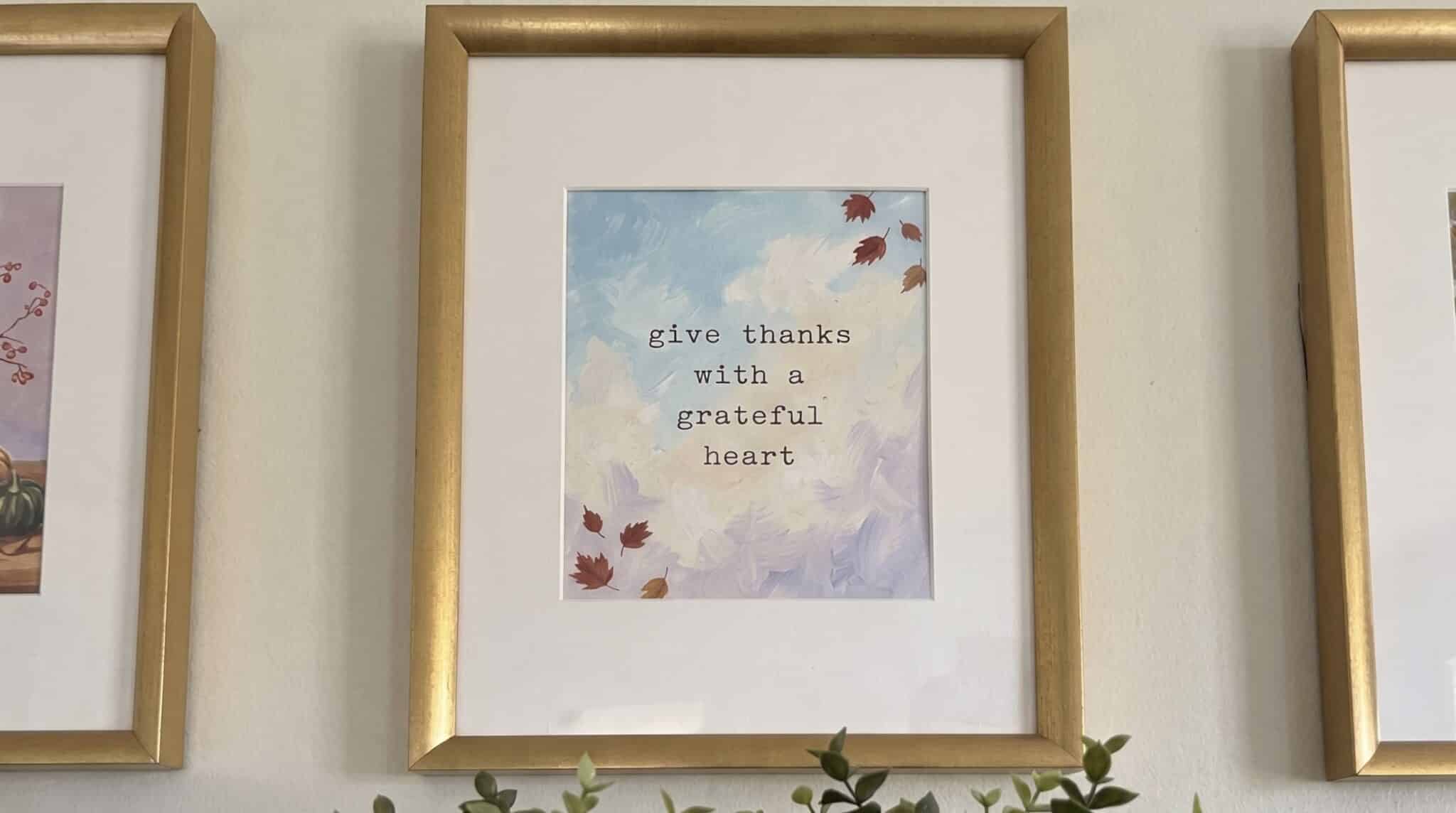
I wanted wall art for my seasonal spots. I didn’t want it to look like every other printable out there. You know the ones: script fonts, farmhouse signs, the same watercolor wreath on every Etsy page. I wanted something that looked like an actual painting.
I’m not a painter. But I love making things, so I decided to learn how to make printable wall art with Gemini, to make my own unique wall art. It took a lot of trial and error. I tried Japanese woodblock prints (too muted), vintage travel posters, cut paper, linocut and impressionist oil before landing on bold gouache. Some prints took ten tries.
But I ended up with 12 prints I love, three for every season, and they’re hanging in my house right now.
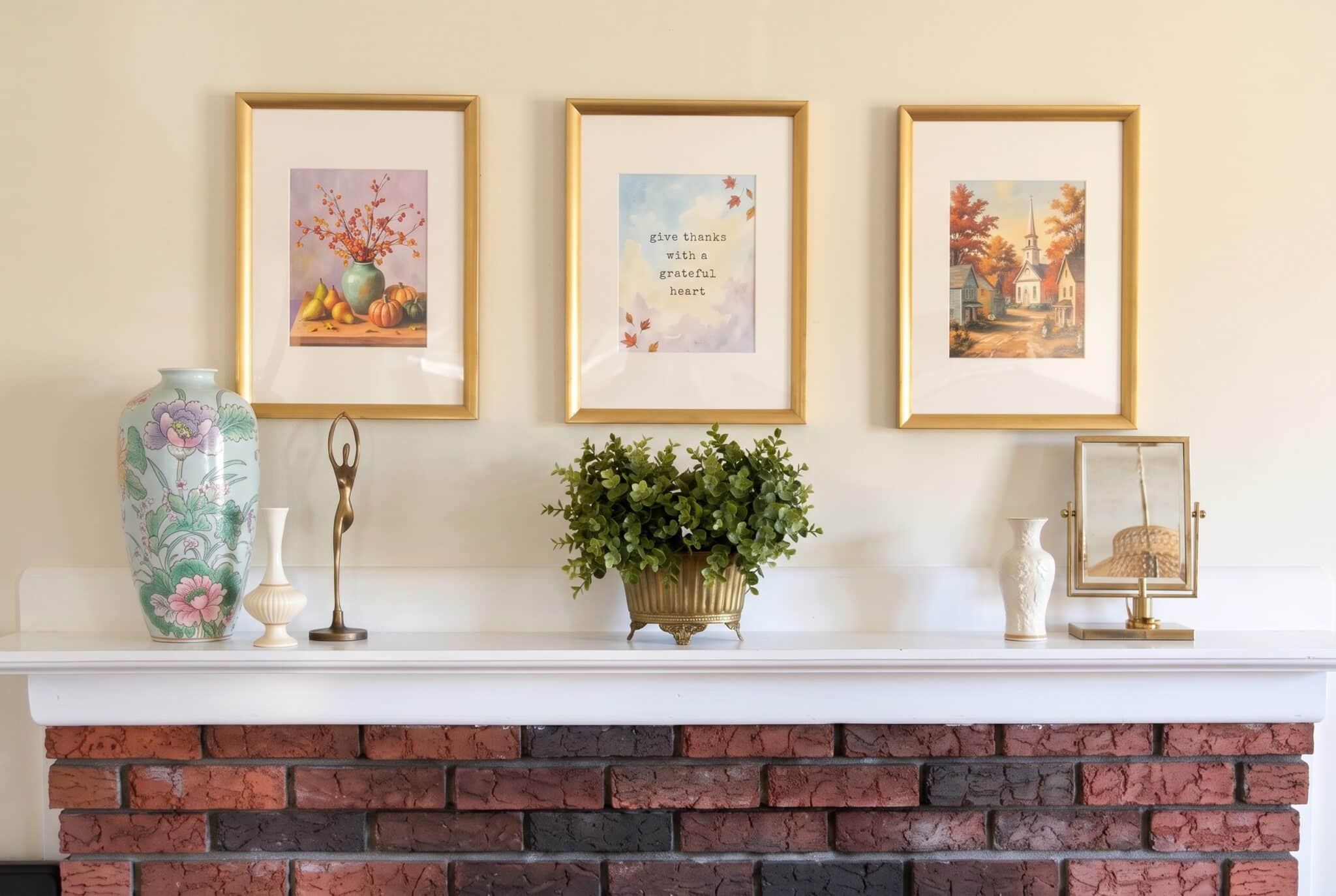
I’ll admit I held my breath the first time. My printer creaked and hemmed and hawed, and then I slid the print into the frame, turned it over and realized it looked really good. And no one else had it.
FREE FOR READERS
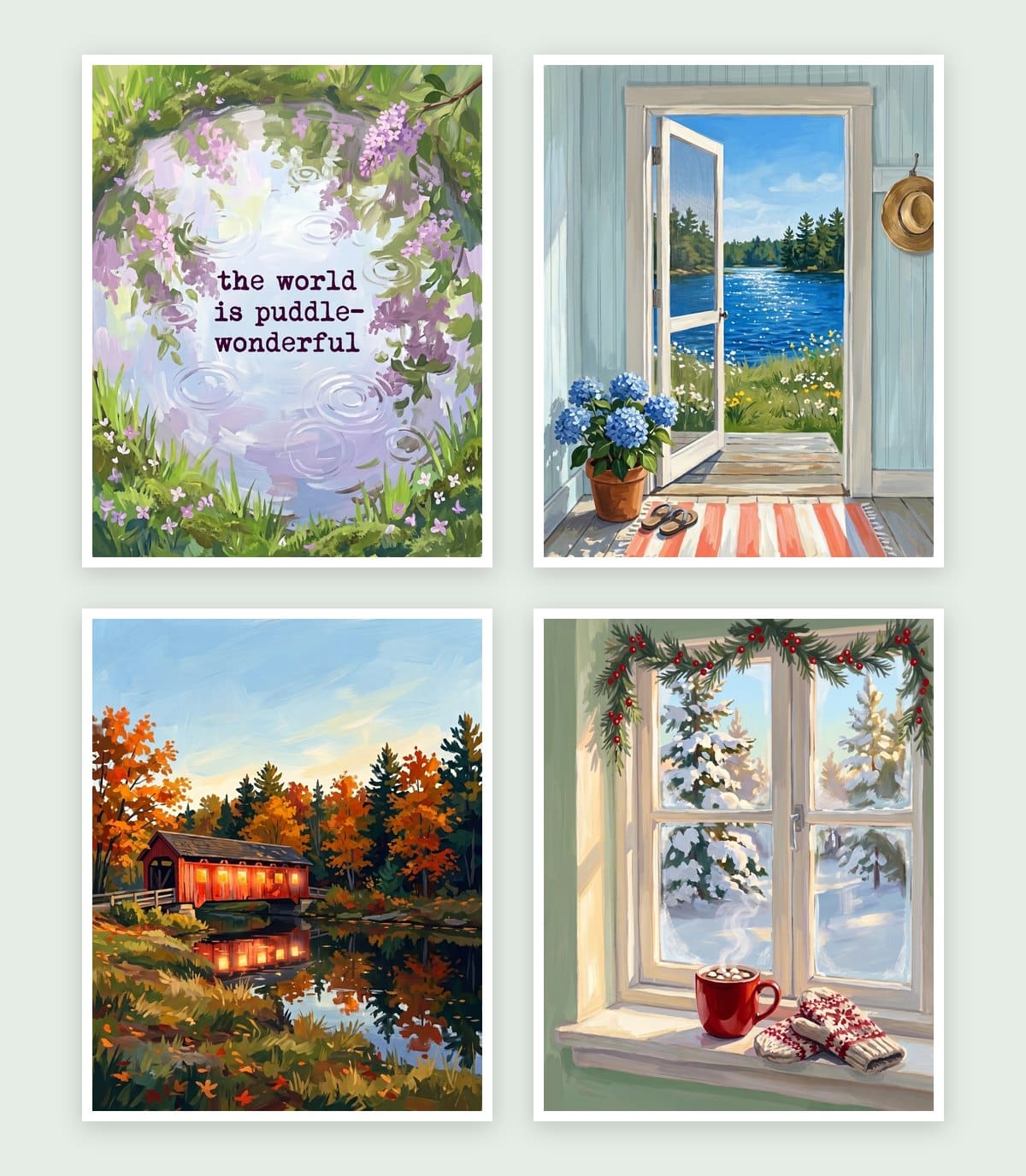
Seasonal Decorating, Made Simple
12 painted prints, three for every season. Just print, frame and swap.
Here’s exactly how I made them, from the first prompt to the frame on the wall, including the free tool that makes AI art sharp enough to print.
What you need
- A free Google account to use Gemini at gemini.google.com or in the Gemini app
- Upscayl, a free program for making images big enough to print (more on that below)
- A printer and matte cardstock, or a local print shop
- An 8×10 frame, or an 11×14 frame with a mat cut for 8×10
That’s it. No art skills, no design software and no paid subscriptions.
One heads-up: the free version of Gemini has a daily limit on images. I hit it more than once while making my set. When that happens, take a break and come back later.
Step 1: Write a prompt that tells Gemini it’s wall art
The biggest thing I learned: tell Gemini what you’re making, not just what you want to see. If you only ask for “a lighthouse,” you’ll get a picture of a lighthouse. Ask for printable wall art and you get something you can actually frame.
Every prompt I use has four parts:
- What it is: “printable wall art”
- The style: I use “bold painterly gouache style, opaque, matte”
- The scene: one clear subject, the season and the light
- The clean-up words: no text, no frame, no border, fills the edge, and the shape
Here’s the exact prompt I used for my summer lake print:
printable wall art, bold painterly gouache style, opaque, matte, a single red wooden canoe pulled up on a grassy lake shore at golden hour as the clear focal point, a calm deep blue lake with warm golden sunlight sparkling across the water, green pine trees on the far shore, lots of calm open space in the sky and water, peaceful, warm and relaxed, rich vibrant colors, visible brushstrokes, luminous, gallery art feel, simple and uncluttered, no text no words, no signature, flat artwork only, not a mockup, no frame, no white border, fills the entire image edge to edge, 4:5 aspect ratio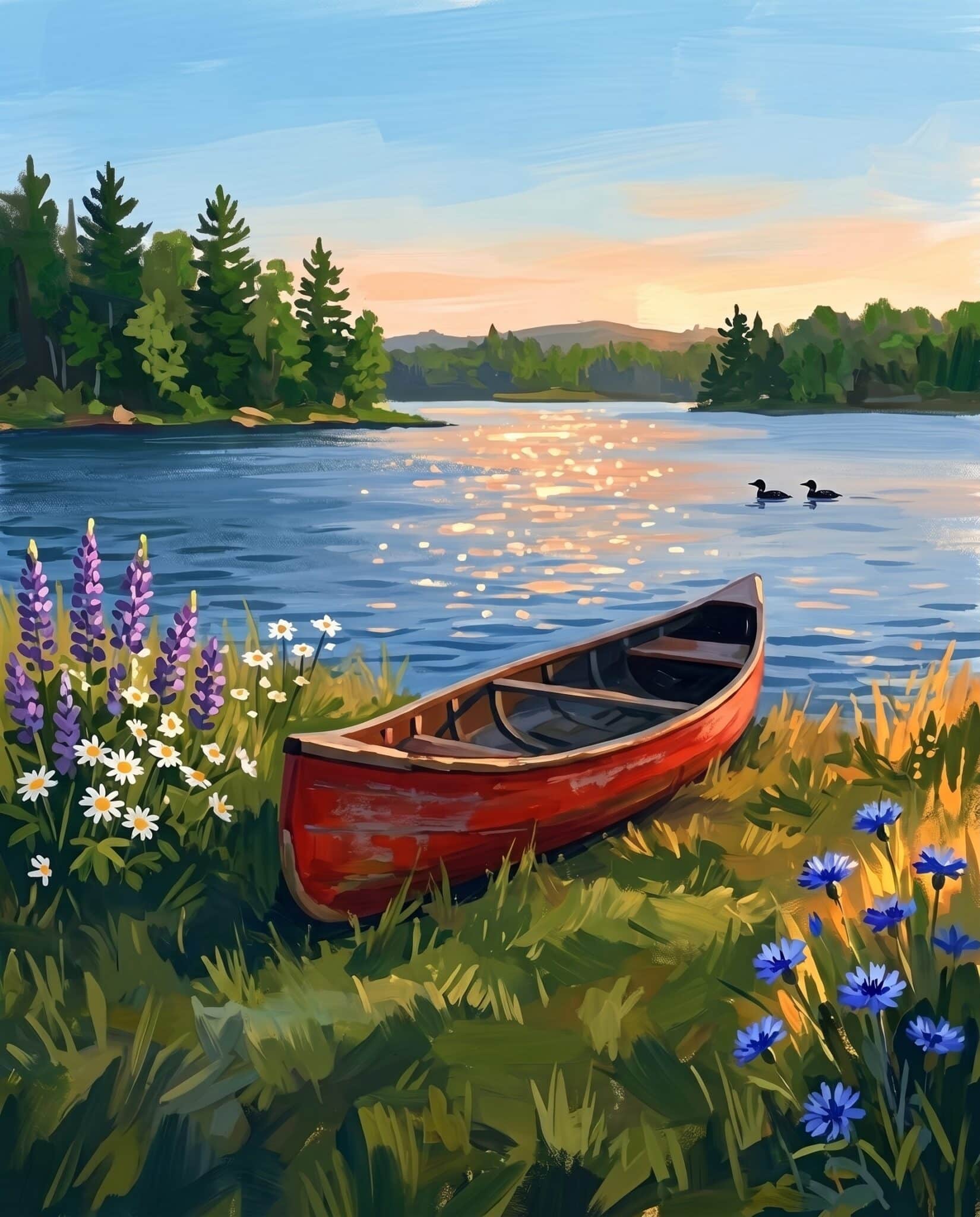
Why “4:5 aspect ratio”? That’s the shape of an 8×10 frame. If you skip it, Gemini usually gives you a square, and you’ll have to crop off part of your art.
Why “no text no words”? Gemini loves to add random lettering, fake signatures and little stamps in the corner. Saying it up front saves you a lot of edits.
Step 2: Use a style reference so your prints match
If you want a set that looks like it belongs together, this is the trick. Once you have one print you love, upload it to a new chat and start your next prompt with:
Match only the painting style and brushwork of this image. Do not copy its layout, colors or objects; create a completely new scene.
The “do not copy its layout” part matters. When I first just said “match the style,” Gemini copied the same birch trees into the same corner of every print. My set started to look like a template.
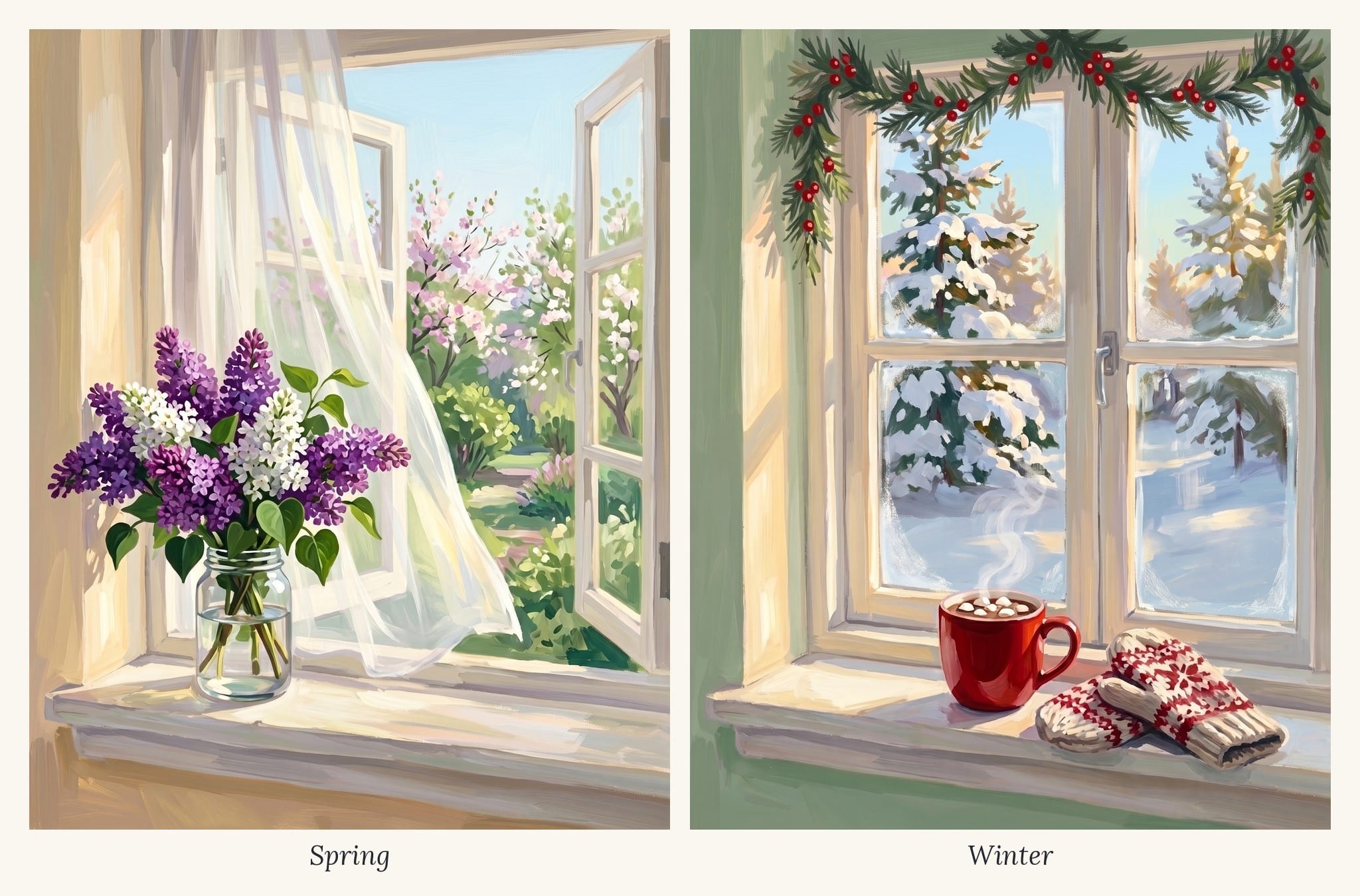
Step 3: Fix it in the same chat
Your first result probably won’t be perfect. Mine almost never were. The good news is you don’t have to start over. Just tell Gemini what to change, in the same chat, and say what to keep:
Make the lake a deep, dazzling sapphire blue with bright sunlight sparkling across the water. Keep everything else exactly the same, and keep the 4:5 aspect ratio.
A few fixes I used over and over:
- Too dark or muddy? “Brighten the whole image with soft morning sunlight and lighten the shadows.”
- Too busy? “Make the main subject the clear focal point with calm, open space around it.”
- Everything one color? Add a contrasting color. My fall bridge looked flat until I made the sky blue so the orange leaves glowed.
- Something that doesn’t belong? “Remove the [thing]. Keep everything else exactly the same.”
When to start a new chat: if you’ve made three or four edits and it’s getting worse, start fresh with a new prompt that includes everything you’ve learned. My summer door print only came together after a fresh start.
Step 4: Download the full-size image
Click the image in Gemini, then use the download button. Don’t copy and paste it or take a screenshot. Both of those shrink your image, and you need every pixel you can get for printing.
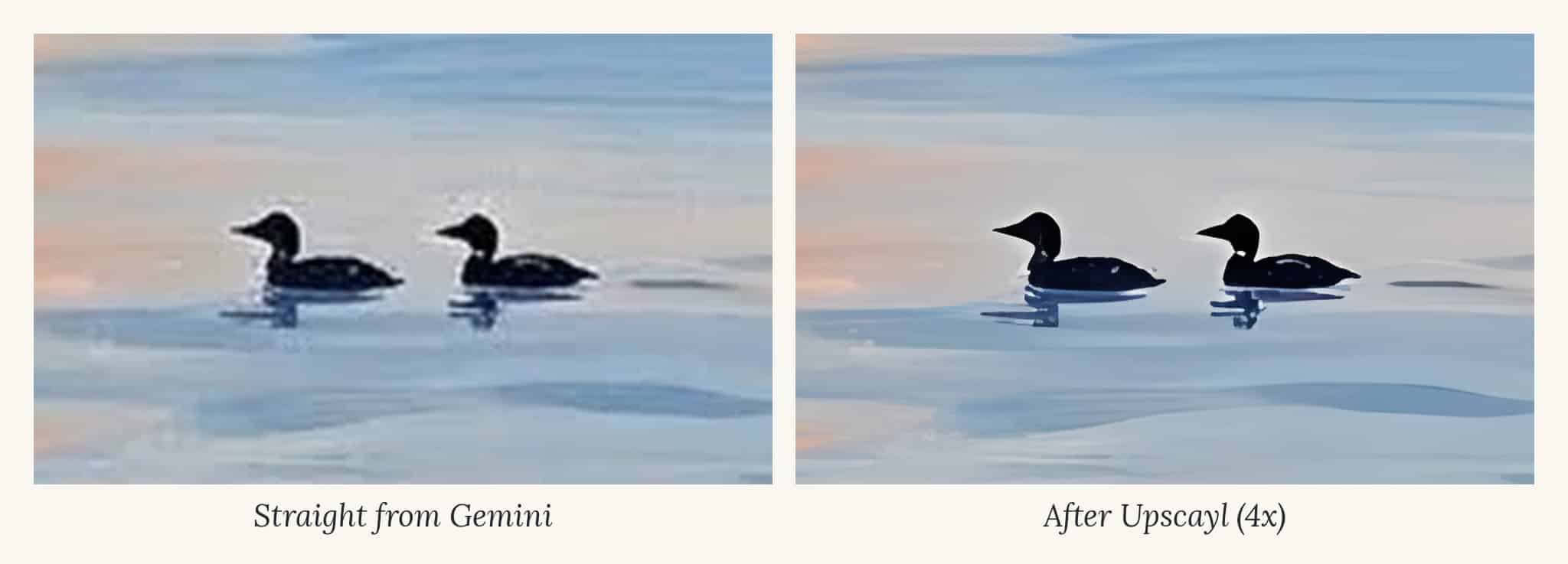
Step 5: Upscale it so it prints sharp
This is the step most people skip, and it’s the difference between art that looks crisp and art that looks fuzzy.
For a sharp print, you want about 300 pixels for every inch. An 8×10 print needs an image about 2400 x 3000 pixels. Gemini’s downloads come out smaller than that, so they look a little soft when you print them at full size.
The fix is a free program called Upscayl. It uses AI to enlarge your image without making it blurry.
Download the free version. When I searched for Upscayl, I kept landing on paid versions, like a cloud version and a Mac App Store version. The only free one is the desktop app on GitHub. Go to github.com/upscayl/upscayl/releases, open Assets under the newest release, and download the file for your computer (.dmg for Mac, .exe for Windows). Then install it like any other app.
The settings I use:
- Model: a painting or digital art model, not “Real Photo.” Photo models smooth out the brushstrokes.
- Scale: 2x is plenty for 8×10. I used 4x on mine so I’d have room to print bigger later.
- Batch mode: turn it on and upscale a whole folder of prints at once.
Step 6: Print it, frame it, hang it
Printing at home:
- Use matte cardstock (around 65 to 110 lb) or matte photo paper. Matte looks the most like a real painting. Glossy looks busy.
- In your print settings, choose Actual size or 100%, not “Fit to page.”
- Pick your printer’s best quality setting and the right paper type.
No printer? Upload your file to any photo print shop and order an 8×10 matte print. It costs a few dollars, and the color is lovely.
Framing: an 8×10 frame works perfectly. For a more gallery look, use an 11×14 frame with a mat cut for 8×10.
What I learned making 12 prints
- Muted styles disappear on the wall. My first set looked lovely up close but blah from across the room. Rich color and contrast matter.
- One clear focal point beats a busy scene. My best prints have one star (a red canoe, a glowing bridge, a little tree) and calm space around it.
- Brown is the enemy. Brown wood, mud and dull leaves made several prints feel heavy. Painted white wood, green grass and colored walls fixed almost all of them.
- Familiar subjects need a fresh angle. A pumpkin patch looked like every other fall printable. An autumn porch with a swing felt like mine.
- Words take extra care. Gemini can do lettering, but check every letter. I’ll share how I got the poem prints right in another post.
Frequently asked questions
Is Gemini free? Yes. You can make images with a free Google account. The free version limits how many images you can make each day.
Can I sell art I make with Gemini? Check Google’s current terms before you sell anything, since AI rules are still changing. I make mine for my own home and for free downloads here on the blog.
What size should I make it? Use “4:5 aspect ratio” in your prompt for an 8×10 frame. For an 11×14 frame without a mat, the shape is a little different, so you may need to crop.
Why does my print look blurry? It’s almost always too small. Upscale it first (Step 5) and print at actual size.
Want my prompts?
My free Seasons Collection has all 12 of these gouache prints, three for every season, sized at 8×10 and ready to print. Sign up below and I’ll send them to your inbox, along with my free Everyday Printables Playbook so you can make your own.
Want to try something more personal? Here’s how I turned a photo of my house into a painting.