Making my 12-print Seasons Collection in Gemini took a lot more than 12 prompts. Some images came back with random words in the corner. Others were so brown and muddy I couldn’t picture anyone hanging them.
The good news is that almost every problem has a simple fix, usually one extra line in your prompt.
Here are the problems I actually ran into, and exactly what I added or changed to fix each one. If you’re just getting started, read my step-by-step guide to making printable wall art with Gemini first.
Problem 1: Random words, letters and fake signatures
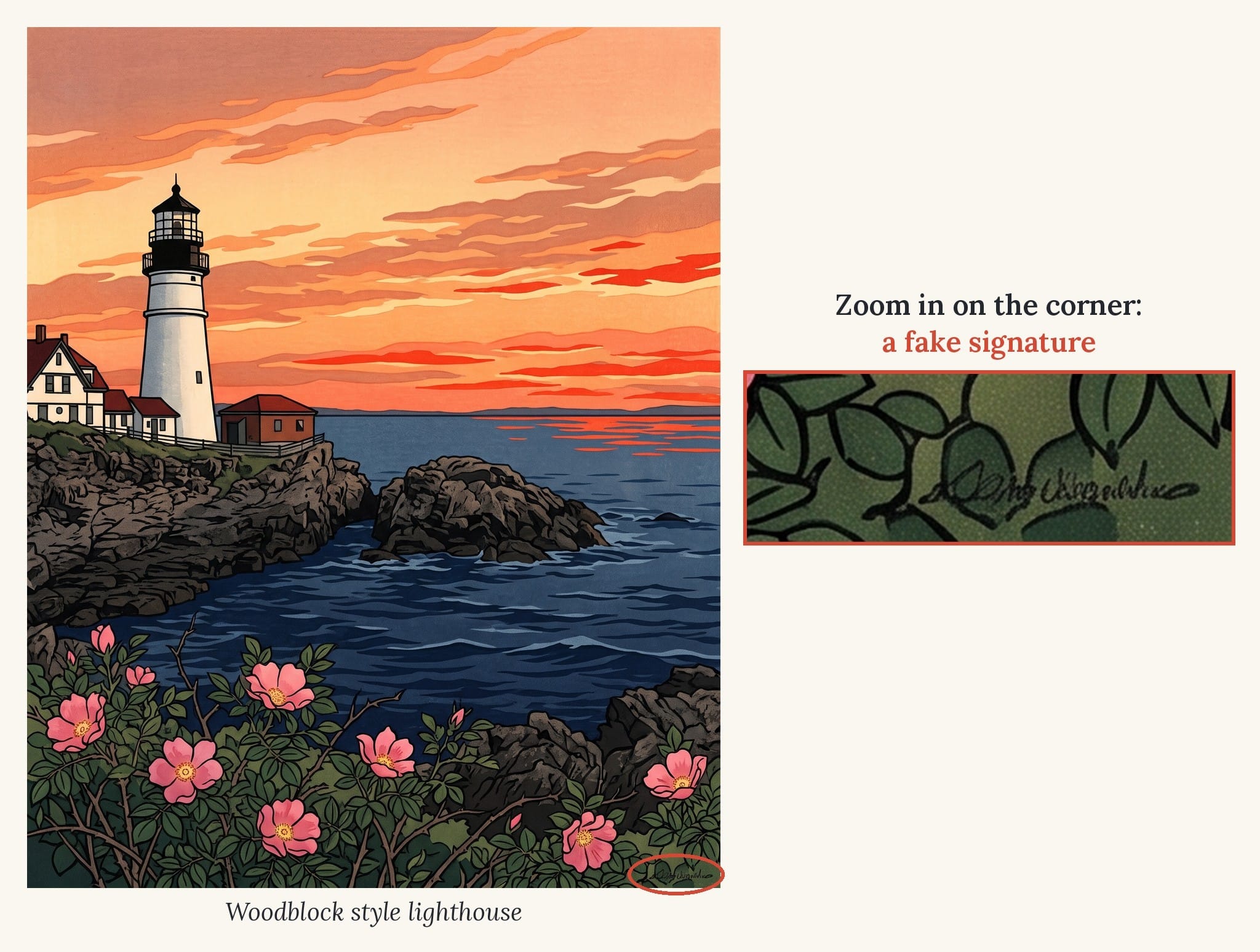
Gemini loves to add text. You’ll see made-up words on signs, squiggly “signatures” in a corner, or, in Japanese woodblock styles, fake seal stamps and characters.
FREE FOR READERS
Seasonal Decorating, Made Simple
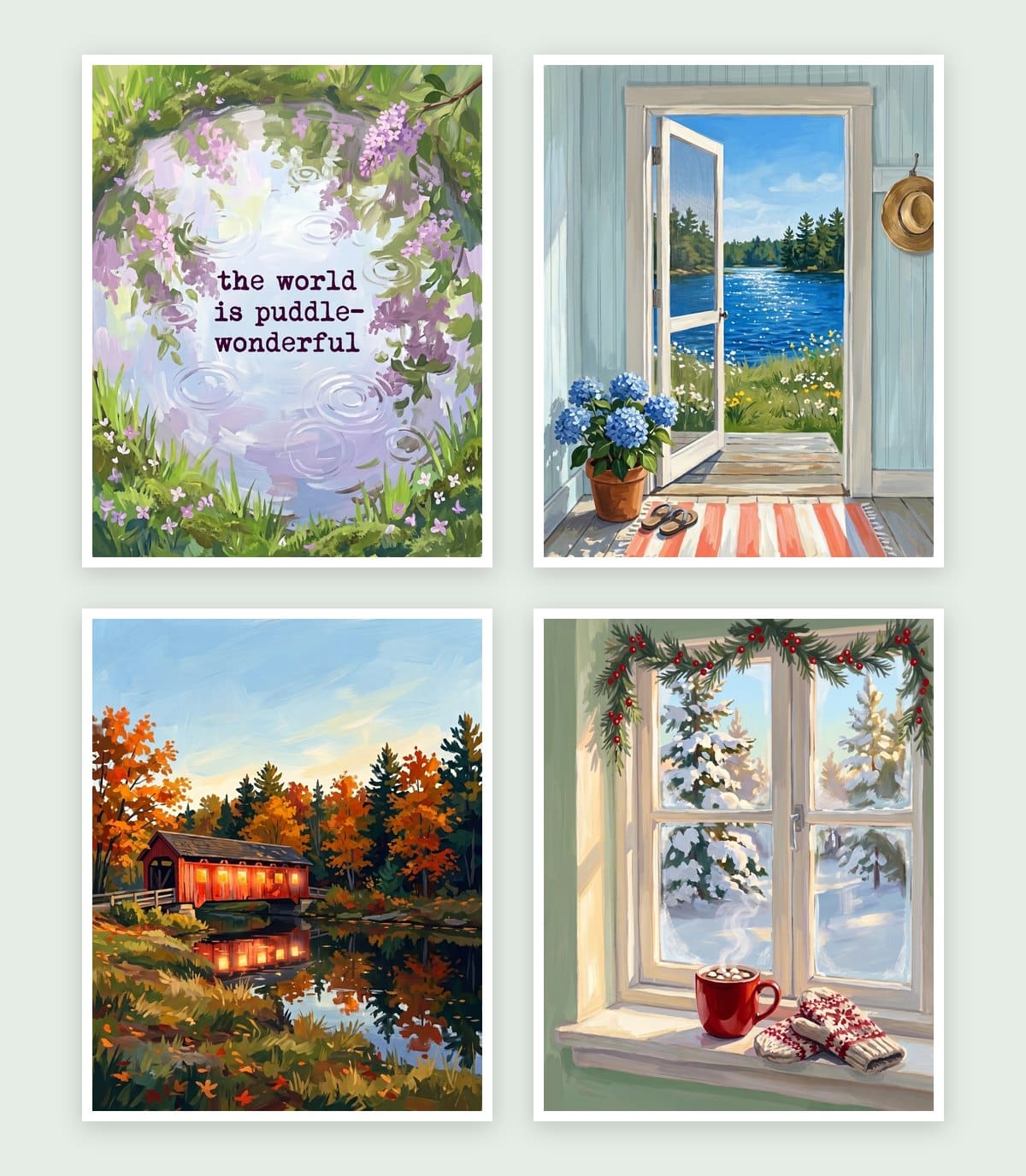
12 painted prints, three for every season. Just print, frame and swap.
The fix: end every prompt with these lines:
no text no words, no signature
For woodblock or other Asian-inspired styles, add:
no Japanese characters, no seal stamps
If it still sneaks in: stay in the same chat and say “Remove all text and lettering from this image. Keep everything else the same.”
What about when you DO want words? Gemini is hit or miss with lettering. When I made a word art print, I got close by asking for a typewriter-style font on three short lines, then asking it to make the font smaller. If Gemini won’t cooperate, make the art without words and add the text in Canva.
Problem 2: Frames, mockups and white borders
When you say “wall art,” Gemini sometimes takes it literally and shows you a framed picture hanging on a wall, or adds a white border around the art. That looks nice, but you can’t print it.
The fix: add this to the end of every prompt:
flat artwork only, not a mockup, no frame, no white border, fills the entire image edge to edge, 4:5 aspect ratio
The 4:5 part matters too. It gives you a shape that prints perfectly at 8×10 and 16×20 without awkward cropping.
If there’s still a thin border: say “Extend the artwork all the way to the edges. No border.” Or crop it off when you resize for printing.
Problem 3: Colors that are too muted, too brown or too dark
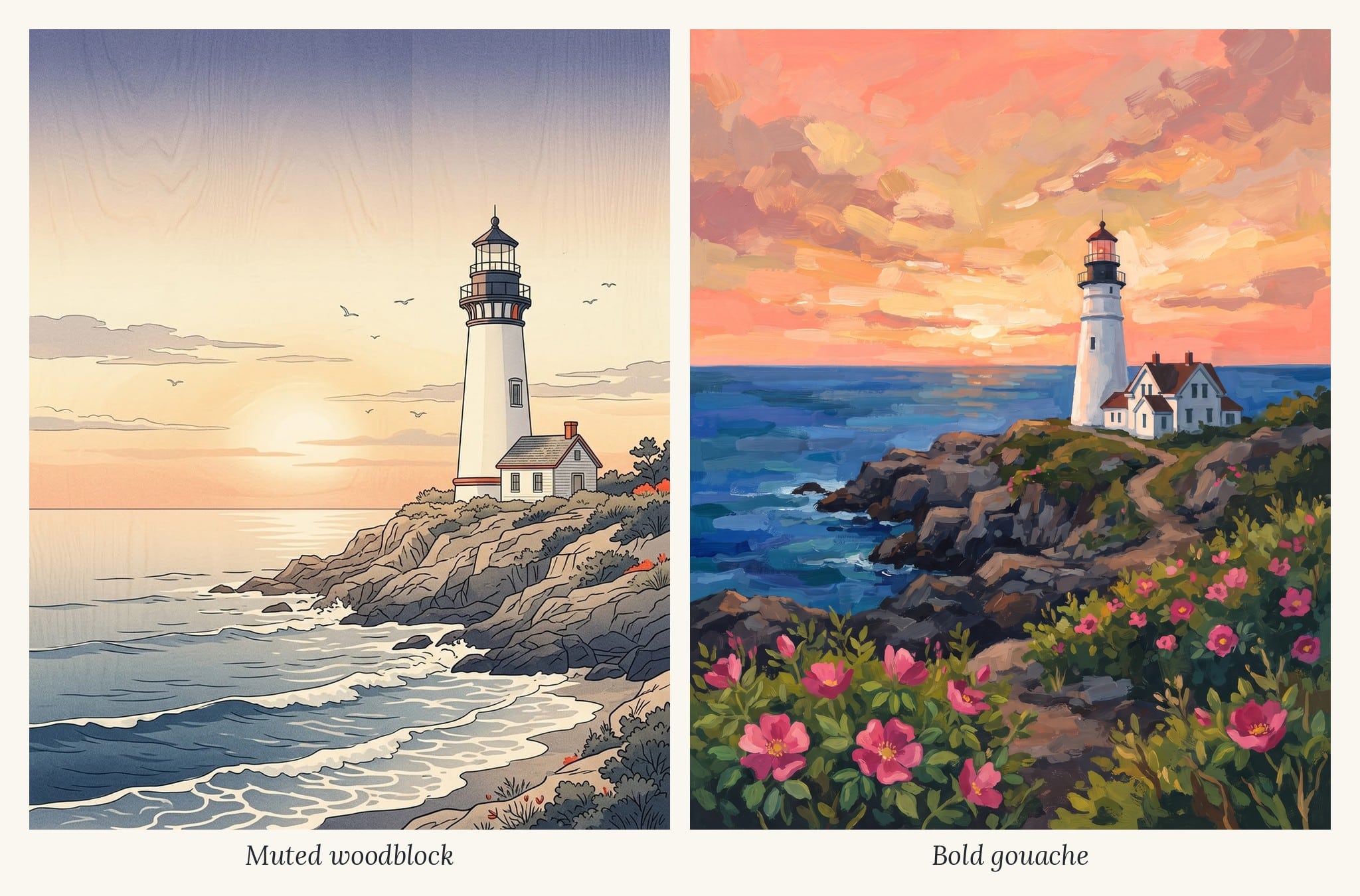
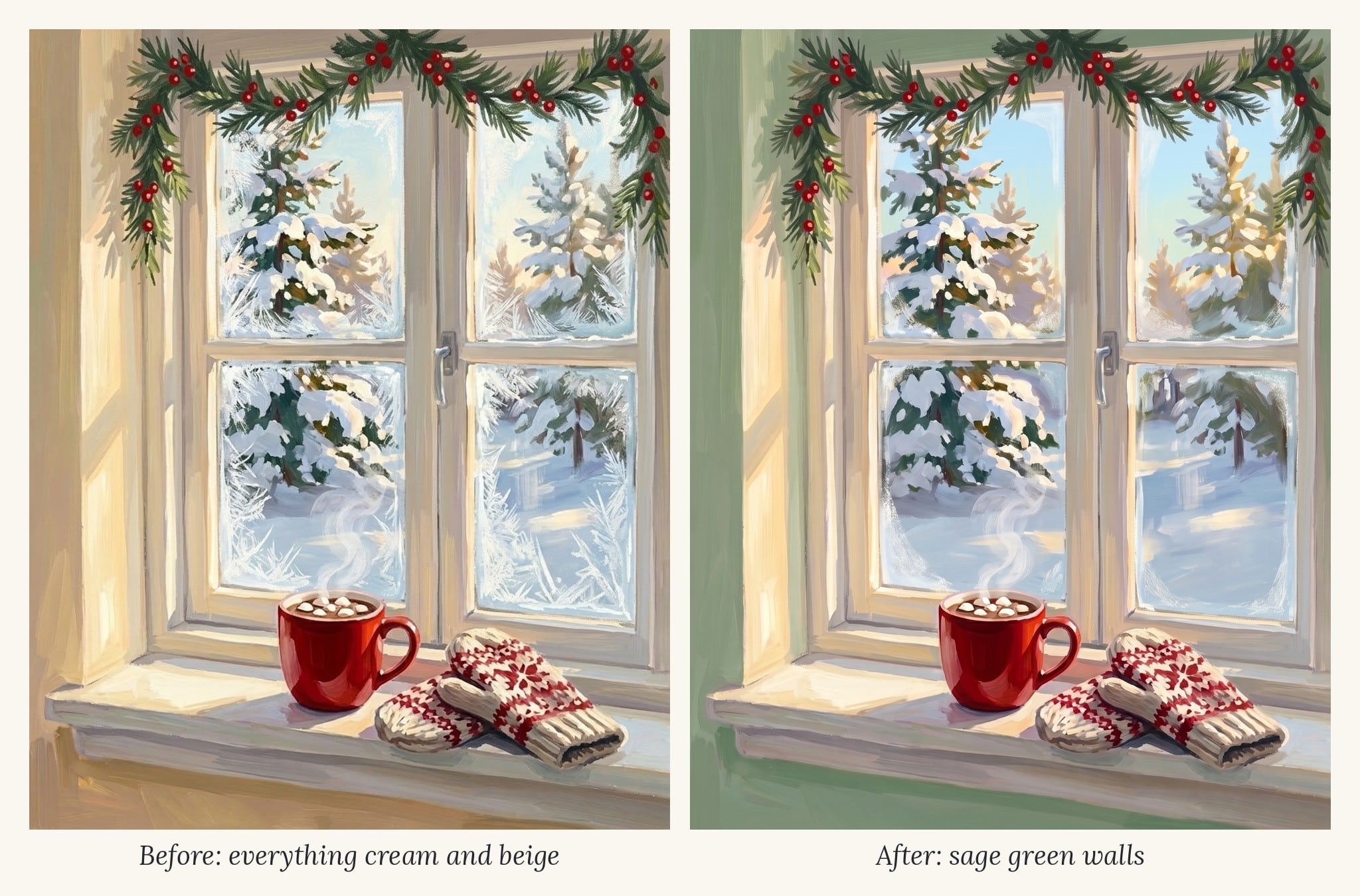
This was my biggest problem. My first woodblock prints were so soft and muted that they disappeared at small sizes. My spring house scene looked a little dreary. A rainy puddle scene came back with way too much brown and beige. And one of my winter windows was so dark you could barely see inside.
The fix for muted or muddy colors: ask for brightness without locking in a palette:
vibrant and luminous, strong contrast
Then name one or two bright things that belong in the scene, like pink blossoms, a red canoe or glowing multicolor lights. That gives Gemini a reason to use color.
The fix for too much brown: say it directly. “Less brown and beige. Add more color.” Gemini responds well to plain feedback.
The fix for too dark: add a light source. “Warm golden light glowing from the window” or “bright morning sunlight” works better than just saying “make it brighter.”
Watch out for color words. If you list specific colors in every prompt, every print ends up looking the same. I dropped the color lists and let each season bring its own colors.
Problem 4: Nothing stands out, or the scene feels generic
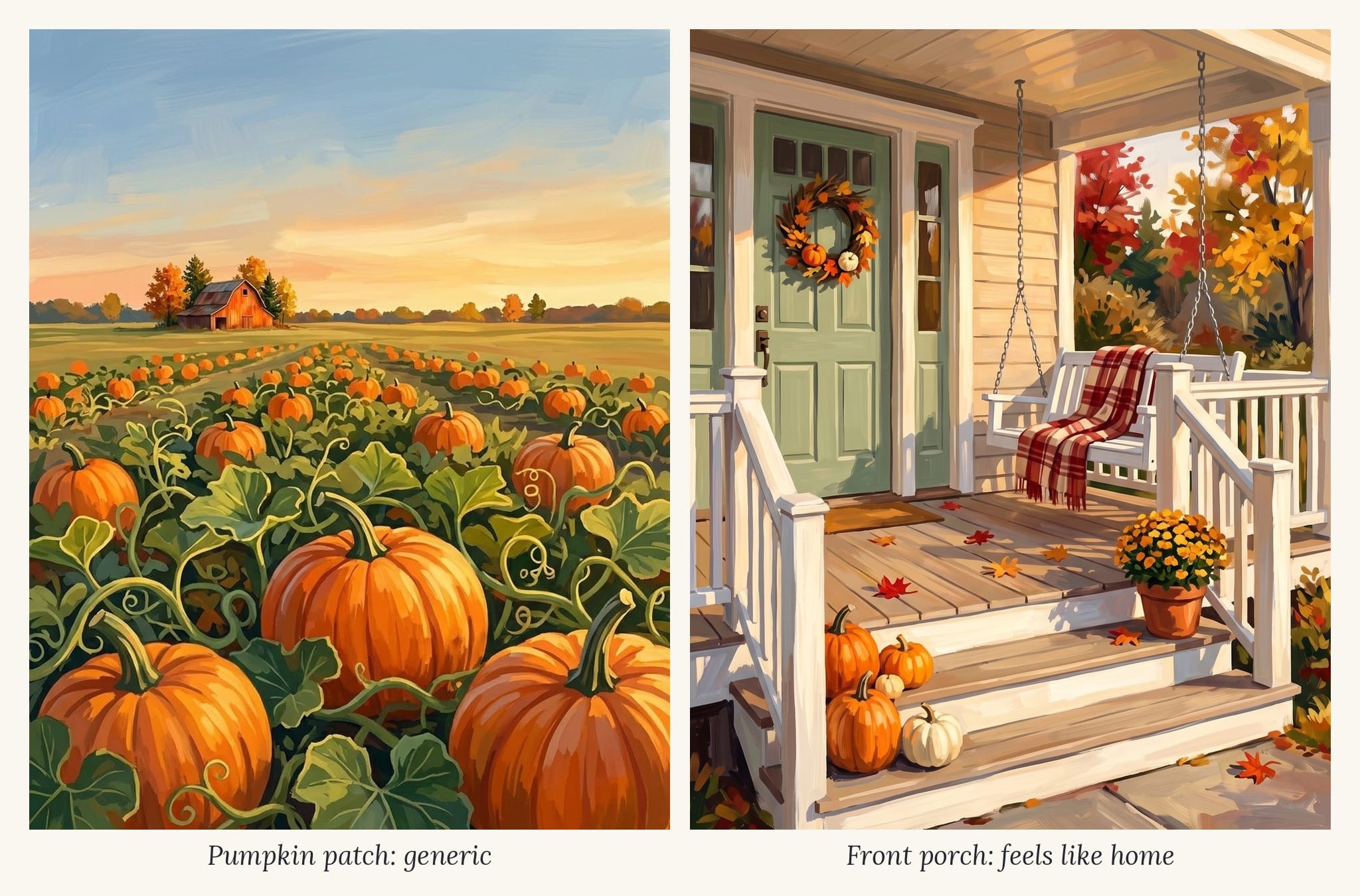
Some of my images were technically fine but didn’t make me feel anything. My pumpkin patch looked like every other fall printable. A pretty farmhouse made me ask, “Whose house is that?” It felt like someone else’s home, not something you’d want on your own wall.
The fix: give the scene one clear focal point and a point of view people can relate to.
- Pick one star. A red cardinal, a single lit window, a canoe on a still lake. Say it first in the scene description.
- Make it feel personal. I swapped the pumpkin patch for a cozy front porch and the farmhouse for a view looking out a window. Scenes you could be standing in feel more like home.
- Keep it simple. Add “simple and uncluttered, perfect composition” so Gemini doesn’t fill every corner.
Problem 5: Prints in a set don’t match, or Gemini copies your reference
When you make a set, each new prompt can drift into a slightly different style. The fix is to upload your favorite finished image as a style reference. But then Gemini often copies too much: the same layout, the same colors, even the same objects.
The fix: upload your reference image and add this line to your prompt:
Match only the painting style and brushwork of this image. Do not copy its layout, colors or objects; create a completely new scene.
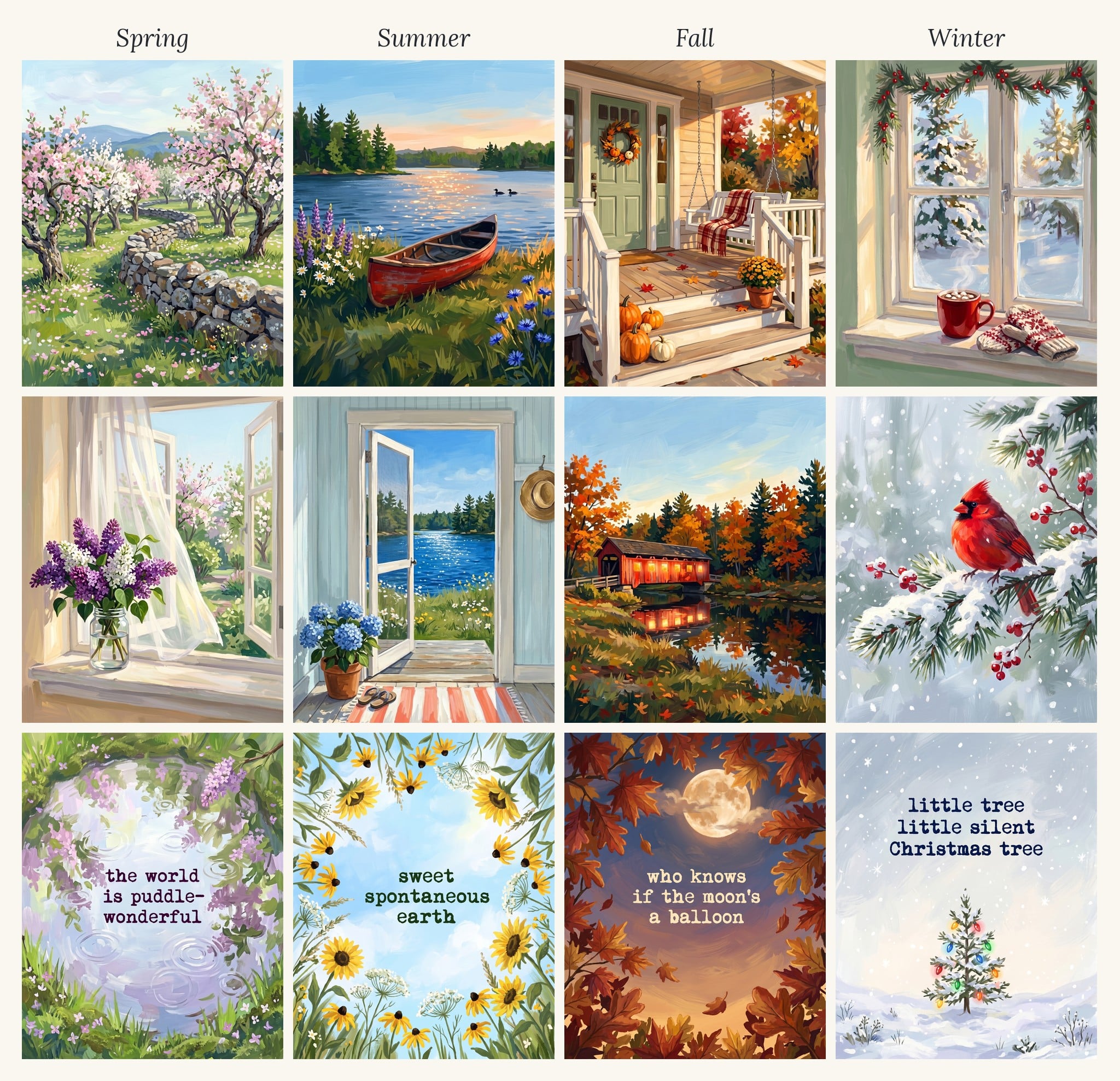
This is how I kept all 12 Seasons prints looking like one set while each scene stayed different.
One more check: line your finished images up together. A print can look great alone and still not fit. My lighthouse won my style test, but next to the other prints it felt too heavy and dark, so I replaced it with a lake scene. You can see the full test in I Tried 6 Art Styles in Gemini.
Problem 6: Edits that keep making it worse
Asking Gemini for small changes in the same chat works well, until it doesn’t. After a few rounds, it starts changing things you didn’t ask about, or it gets stuck and keeps giving you nearly the same image.
I hit this with my winter window and my summer door. Each edit fixed one thing and broke another.
The fix:
- Make one change at a time. “Make the curtains white” works better than a list of five changes.
- Say what to keep. End edits with “Keep everything else exactly the same.”
- Know when to start over. If two or three edits haven’t worked, open a fresh chat. Paste your original prompt with the changes written into it, and upload your style reference again. A clean start is often faster than more edits.
Problem 7: Hitting the daily image limit
Gemini limits how many images you can make in a day. I hit that limit more than once in the middle of fixing a print, which is frustrating when you’re so close.
How to make your images count:
- Write your full prompt before you start. Include all the fix lines from this post up front so you aren’t spending images on avoidable mistakes.
- Make one change per edit. Fewer rounds of back and forth means fewer images used.
- Keep a prompt file. Save the prompts that work in a note or doc so you can pick up right where you left off the next day.
- Batch your sessions. Plan a few scenes at a time instead of trying to finish a whole set in one sitting.
Quick fix cheat sheet
Pin this or screenshot it for your next Gemini session.
| Problem | What to add or say |
|---|---|
| Random words or signatures | no text no words, no signature |
| Fake stamps in woodblock styles | no Japanese characters, no seal stamps |
| Framed or mockup image | flat artwork only, not a mockup, no frame |
| White border | no white border, fills the entire image edge to edge |
| Wrong shape for printing | 4:5 aspect ratio |
| Dull or muddy colors | vibrant and luminous, strong contrast, plus one bright object |
| Too much brown | “Less brown and beige. Add more color.” |
| Too dark | Add a light source, like warm light glowing from a window |
| Generic scene | One clear focal point, simple and uncluttered |
| Set doesn’t match | Upload a reference with “Match only the painting style and brushwork” |
| Edits going wrong | One change at a time, or start a fresh chat |
| Too small to print | Upscale it (how I do it for free) |
Get the free prints
Want to skip the troubleshooting? My free Seasons Collection has 12 finished gouache prints, three for every season, sized at 8×10 and ready to print. Sign up below and I’ll send them to your inbox, along with my free Everyday Printables Playbook, which has these fixes built right into the prompts.